For many Windows users, opening MOV video files from Apple devices can feel like a bit of a puzzle, particularly when the system refuses to cooperate without the right tools. Whilst QuickTime was once the default solution for handling these container files, there are now numerous alternatives that offer seamless playback without the need to install Apple's software. One of the most popular and reliable options is VLC Media Player, a versatile and free application that supports a wide array of formats and codecs, making it an ideal choice for anyone looking to enjoy their MOV files effortlessly on a Windows machine.
Understanding mov files and windows compatibility challenges
What are mov files and why windows struggles with them
MOV is a container format that was created by Apple back in 1998, designed to store various media tracks including video, audio, and even text. The format itself can encapsulate a variety of codecs, which are essentially the compression methods used to reduce file sizes whilst maintaining quality. Older iPhones, for instance, recorded videos in the H.264 format, which Windows tends to support quite well. However, newer devices often use the HEVC codec, also known as H.265, which allows for higher compression and better video quality. Unfortunately, Windows does not natively support all MOV files, particularly those encoded with HEVC, and this often results in frustrating error messages about missing codecs or HEVC video extensions. The challenge arises because Windows Media Player and similar built-in applications rely on system codecs that may not include the necessary decoding libraries for these modern Apple formats. This incompatibility can lead to playback problems or even file corruption, leaving users searching for a solution that doesn't involve purchasing additional software or codecs.
Exploring alternative media players beyond quicktime for windows users
Whilst QuickTime was traditionally the go-to application for handling MOV files, many users now prefer alternatives that offer broader compatibility and fewer system intrusions. VLC Media Player stands out as a particularly strong candidate because it comes with integrated codecs, meaning it operates independently of the system's installed codecs. This makes VLC a self-contained solution that can handle a vast range of video and audio formats without requiring additional downloads or purchases. Beyond VLC, there are other applications such as CopyTrans Viewer, which is a free tool specifically designed to support Apple formats, including HEIF and HEVC images. CopyTrans Viewer is especially useful for those who frequently transfer media from Apple devices and need a straightforward way to view these files without hassle. The key advantage of these alternatives is that they eliminate the need for invasive software installations and provide a more streamlined experience. Many users have expressed a preference for avoiding QuickTime due to concerns about its integration with browser plugins and shell extensions, and modern media players offer a cleaner, more efficient approach to managing diverse file formats on Windows.
Setting up vlc media player for mov file playback
Step-by-Step Guide to Downloading and Installing VLC Media Player
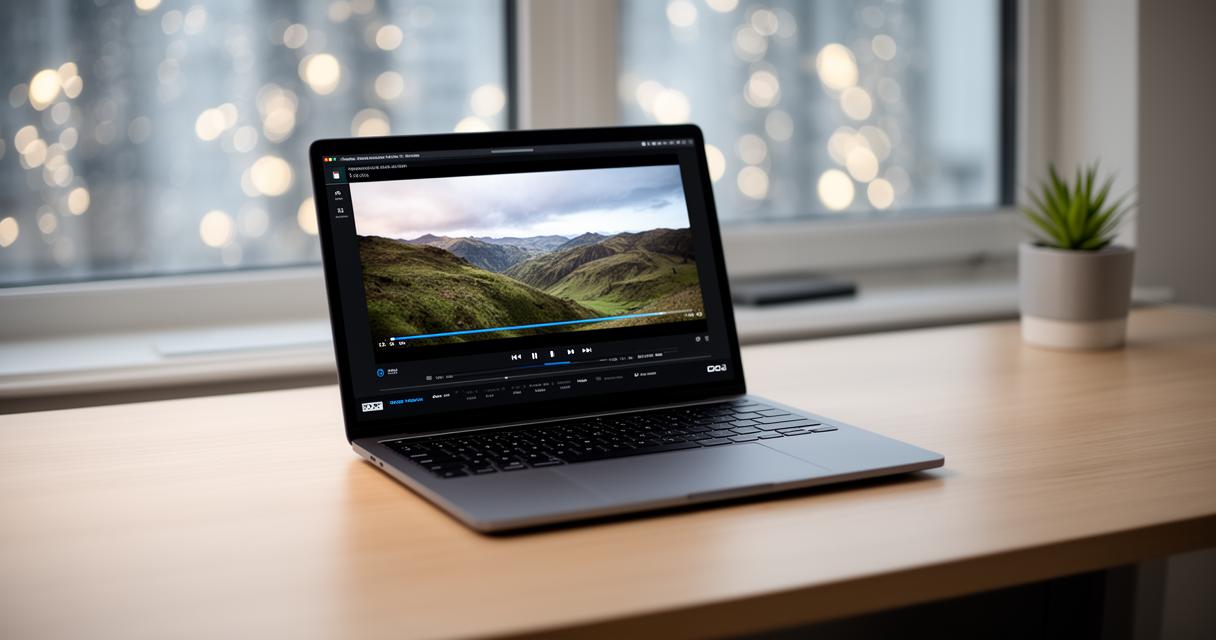
Getting started with VLC Media Player is remarkably straightforward, and the installation process is designed to be user-friendly even for those who may not be particularly tech-savvy. First, visit the official VLC website and navigate to the download section, where you will find versions tailored for various operating systems including Windows, macOS, and Linux. Once you have downloaded the installer for Windows, simply run the executable file and follow the on-screen prompts. The installation wizard will guide you through selecting the installation directory, choosing which components to install, and setting up file associations. It is generally recommended to allow VLC to associate itself with common media file types, including MOV files, so that double-clicking on a video will automatically open it in VLC. After the installation is complete, you can launch VLC and immediately begin playing your MOV files without any additional configuration. The application is lightweight and does not burden your system with unnecessary processes, making it a practical choice for everyday use. The entire process typically takes only a few minutes, and once installed, VLC becomes a reliable tool for handling a wide variety of media formats with minimal fuss.
Configuring vlc settings for optimal mov file performance
Whilst VLC Media Player works exceptionally well out of the box, there are several settings and preferences that can be adjusted to enhance your viewing experience further. Upon opening VLC, you can access the preferences menu by clicking on Tools and then selecting Preferences. Within this menu, you will find options to adjust video output settings, audio output devices, and even codec preferences. For most users, the default settings will suffice, as VLC uses ffmpeg to decode a vast array of codecs, including the Apple graphics SMC decoder that is commonly found in MOV files. However, if you encounter playback issues or notice that the video quality is not as expected, you may want to explore the advanced settings. Here, you can enable hardware acceleration, which allows your graphics card to assist with video decoding and can significantly improve performance on systems with limited processing power. Additionally, you can adjust the caching values if you experience buffering or stuttering during playback. VLC also offers the ability to customise subtitle synchronisation, audio equalisation, and even the interface itself, giving you complete control over your media playback environment. By taking a few moments to familiarise yourself with these settings, you can ensure that your MOV files play smoothly and that you get the most out of VLC's impressive feature set.
Converting MOV Files and Managing Codecs for Smooth Playback
How to Convert MOV Files to WMV or Other Compatible Formats
In some situations, converting your MOV files to a more universally compatible format such as WMV can resolve persistent playback issues and improve compatibility with a wider range of applications and devices. VLC Media Player itself offers a built-in conversion feature that allows you to transcode your video files with relative ease. To begin, open VLC and select Media from the top menu, then choose Convert or Save. You will be prompted to add the MOV file you wish to convert, and once selected, you can proceed to configure the output format. VLC provides several preset profiles for different formats and quality levels, including WMV, MP4, and AVI. If you have specific requirements, you can also customise the codec settings, bitrate, and resolution to suit your needs. After selecting your desired output settings, choose a destination folder for the converted file and initiate the conversion process. Depending on the file size and your system's processing power, this may take a few minutes to complete. Converting MOV files to a more compatible format can be particularly useful if you plan to share your videos with users on different platforms or if you need to ensure that the files play correctly on devices that lack support for HEVC or other advanced codecs. This method is also beneficial for overcoming storage limitations, as certain formats offer better compression without a significant loss in quality.
Understanding Codecs and Their Role in Seamless Media Playback
At the heart of every video and audio file lies a codec, which is a software component responsible for encoding and decoding digital media. Codecs are essential because they compress large amounts of data into manageable file sizes, allowing for efficient storage and transmission without compromising quality. When you encounter an error message stating that a codec is missing or unsupported, it means that your media player lacks the necessary decoding library to interpret the file's compressed data. In the case of MOV files, common codecs include H.264 and HEVC, with the latter offering superior compression but requiring more advanced decoding capabilities. VLC Media Player excels in this area because it comes bundled with a comprehensive set of integrated codecs, which means it does not rely on the system's codecs to function. This independence is a significant advantage, as it ensures that VLC can handle a wide variety of media formats without the need for external codec packs or additional purchases. Some MOV files may be encoded with less common codecs such as 'undf', indicating that the codec is unknown or not widely recognised. In such cases, VLC's use of ffmpeg and its extensive decoder library often allows it to play these files successfully. Understanding the role of codecs and how they interact with media players can help you troubleshoot playback issues more effectively and make informed decisions about file conversion and software choices. By ensuring that your media player is equipped with the right codecs or by using a versatile tool like VLC, you can enjoy seamless playback of your MOV files and other media formats without encountering frustrating compatibility problems.