Digging out an old handset and giving it a new lease of life is a satisfying project, but plenty of people get stuck at the very first hurdle when there’s no SIM card to hand. Whether you’ve inherited a spare iPhone, picked one up secondhand, or simply want to repurpose an old device as a dedicated music player or retro gaming machine, the good news is that activation without a physical SIM is entirely possible. This guide walks through the practical methods that actually work, drawing on real-world experience from tinkerers who’ve been through the process themselves.
In short
- Activating an iPhone without a physical SIM card is possible, allowing users to repurpose older devices for Wi-Fi-only tasks like music playback or gaming.
- Connecting the iPhone to a computer with iTunes is a reliable way to trigger the activation process and bypass the need for an active cellular network.
- Using an old, inactive SIM card temporarily can sometimes satisfy Apple’s activation requirements if the device is carrier-locked.
- Setting up the device through a stable Wi-Fi connection during the initial setup screens can occasionally circumvent the need for a physical SIM on certain iOS versions.
- Keeping the iOS updated is crucial for ensuring the device functions reliably after being successfully activated.
- Users should be aware that carrier locks may complicate the activation process, and some methods like jailbreaking carry potential risks for the device.
Understanding iPhone Activation Without a SIM Card
Apple designed its devices to expect a SIM during the initial setup, which is why so many people assume a missing card means a dead end. In reality, there are several workarounds that let you bypass this requirement, and they’ve been documented by hobbyists such as Josh McCarty on JoshMcCarty.com, whose September 2018 post on reviving an old iPhone 5 remains a handy reference point for anyone facing the same puzzle.
Why You Might Need to Activate Without a SIM
There are countless reasons someone might want to get an iPhone running without inserting a SIM card. Perhaps the device is carrier locked and you no longer have an active contract with that network, or maybe you’re setting up an old phone purely for WiFi-based tasks such as streaming, note-taking, or even retro gaming emulation. Some people simply want a backup device ready to go in case their main phone fails. Whatever the motivation, the underlying challenge is the same: Apple’s activation screen typically insists on detecting a SIM before it lets you proceed to the home screen.
What you’ll need before starting the process
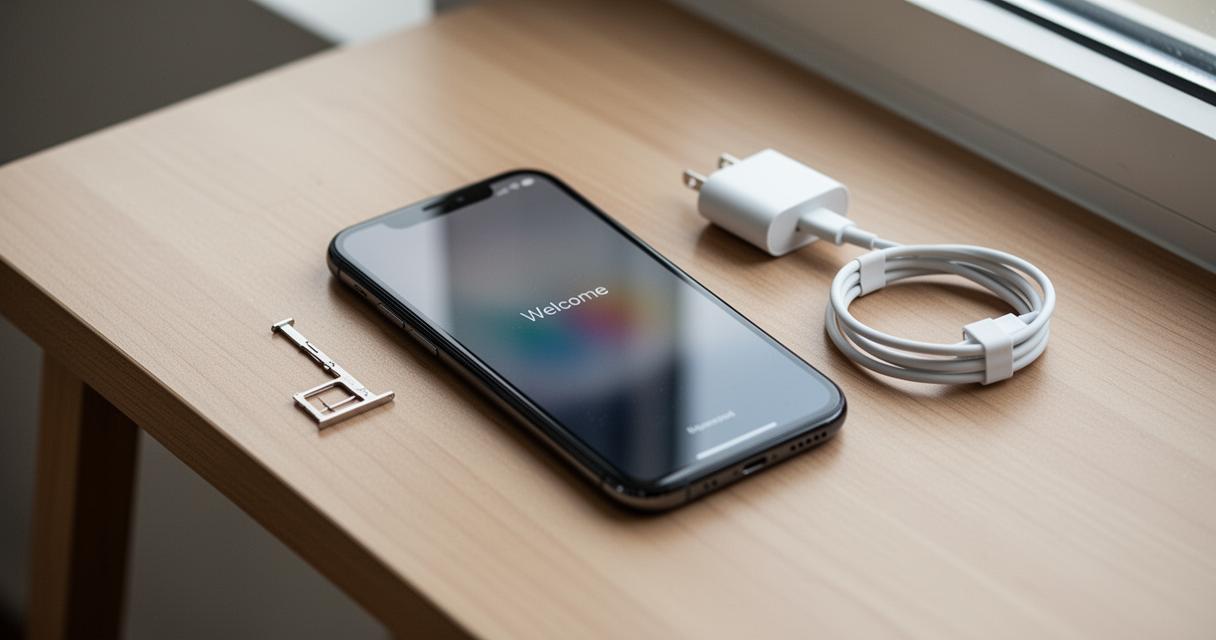
Before diving in, it helps to gather a few essentials. A computer with iTunes installed is the most reliable tool for this job, along with a compatible USB cable to connect your iPhone. It’s also worth checking whether the device is locked to a specific carrier, as this affects which method will work for you. If you happen to have access to an old SIM card, even one that’s no longer active, it can sometimes be borrowed temporarily just to get through the setup screens, a trick that worked well for McCarty when reviving his own iPhone 5. Stable WiFi access is also useful, since some steps rely on an internet connection rather than a mobile network.
Step-by-Step Guide to Activating Your iPhone Using iTunes
For many users, iTunes offers the most straightforward route to activation, particularly when the handset isn’t tied to a specific carrier. This method essentially tricks the device into recognising that it’s ready for use, without requiring an active SIM card throughout the entire process.
Connecting Your Device and Launching iTunes
Start by plugging your iPhone into your computer using the USB cable, then open iTunes. The software should detect the connected device almost immediately and display it in the interface. From here, you’ll want to select your iPhone from the list of connected devices, which brings up a summary screen showing details about the handset, including its storage capacity and current software version. This is also a good moment to back up any existing data if the device previously belonged to someone else and might still contain personal information.
Completing the Activation Process and Setting Up Your Apple ID
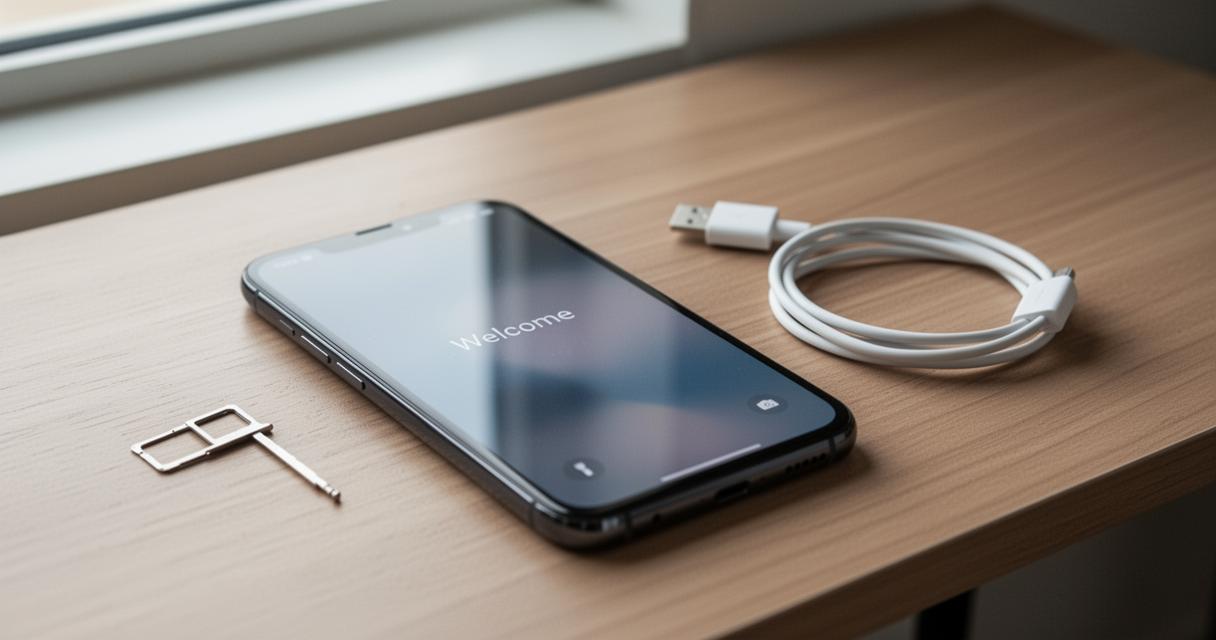
Once your device appears in iTunes, follow the on-screen prompts to begin the setup sequence. iTunes will usually offer options to restore the phone or set it up as new, and choosing the latter often triggers the activation process without demanding a SIM card, provided the handset isn’t carrier locked. After the initial setup completes, you’ll be prompted to sign in with your Apple ID, which unlocks access to the App Store, iCloud, and other essential services. It’s worth noting that if the phone is locked to a particular network, this method may not work smoothly, in which case borrowing a SIM from the same carrier temporarily, as McCarty did, can help push through the activation screen before switching back to WiFi-only use.
Alternative activation method using wi-fi connection
If iTunes isn’t available or you’d rather avoid connecting to a computer altogether, there’s a second approach that relies entirely on a wireless network connection.
Activating through wi-fi without a physical sim
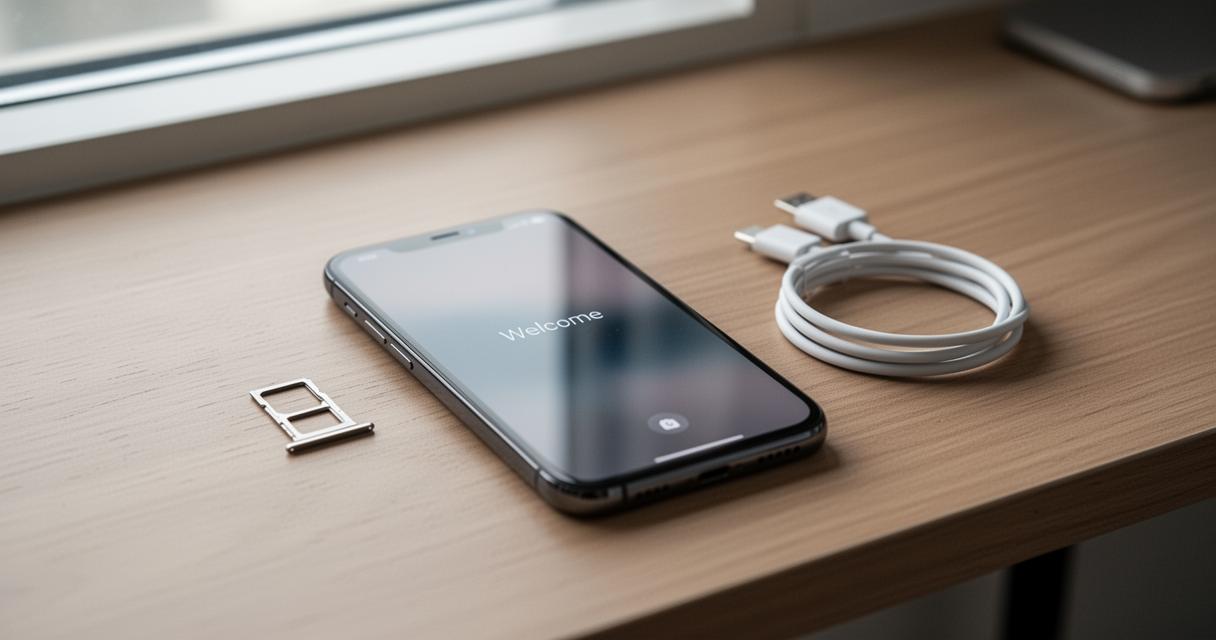
Depending on the iOS version installed, some iPhones allow you to complete activation by connecting directly to a WiFi network during the initial setup screens, sidestepping the need for a SIM entirely. This method tends to work best on models that haven’t been heavily restricted by carrier settings. Once connected to a trusted network, the phone can communicate with Apple’s servers to verify the device and complete the necessary checks, eventually landing you on the home screen ready for everyday use. It’s worth mentioning that some users have also explored jailbreaking as a way to bypass activation locks entirely, though this route carries more risk and isn’t guaranteed to work smoothly across every model.
Ensuring Your iOS is Updated for Optimal Functionality
Regardless of which method you choose, keeping the operating system current makes a noticeable difference to performance and reliability. An outdated iOS version can sometimes cause activation screens to behave unpredictably, so checking for updates beforehand, either through iTunes or a WiFi connection once the device is partially set up, is a sensible precaution. After updating, your iPhone should run smoothly as a WiFi-only device, perfectly capable of handling apps, browsing, and media playback without ever needing a SIM card inserted again. As with most tinkering projects involving older Apple or Android hardware, results can vary depending on the specific model and software version, so it’s always worth proceeding carefully and understanding that any workaround is attempted at your own risk.